Grow Together with Partnerships
Run a program with a school, camp or club on nnerb. Connect your accounts, share the program cycles you choose, and decide exactly what your partner can see.
Find My Partnerships in your dashboard. Search for a business, invite one by email, answer requests, and manage what each partner sees, all from one page.
What the partner network gives you
You stay the host of your own programs. A partner sees only what you choose to share, and only in view-only mode.
Partners do not need a paid plan
Invite a business that is not on nnerb and it gets a free partner account with its own view-only partner portal. It can activate a full business account whenever it wants to run its own classes.
Nothing is shared until the invitee proves who they are
An invited business sets a password, then enters a 6-digit code sent to the email address you invited. Until then there is no account, no partnership and nothing shared.
Co-host a cycle with a partner
Add a partner as a collaborator on a program cycle. They approve it from their own My Partnerships page, and the cycle then shows on both sides with Host and Co-host labels.
How to start a partnership
- Connect. On My Partnerships, search for a business under Find New Partners, or use Invite a Business with their email address. If they already own a business on nnerb, they get a partnership request. If not, they get a registration link by email.
- They approve. Requests appear under Action Required: Incoming Requests, where the other side can Approve or Decline.
- Share a program. Open the program in Manage Programs, choose Edit Term/Cycle, and use the Collaborators tab to invite your partner.
- They approve the cycle. The invite arrives in their Incoming Requests. Once approved, the cycle appears as Shared programs on your partner’s card.
- Adjust what they see. Switch Participants, Progress and Attendance on or off for each cycle you host, whenever you like.
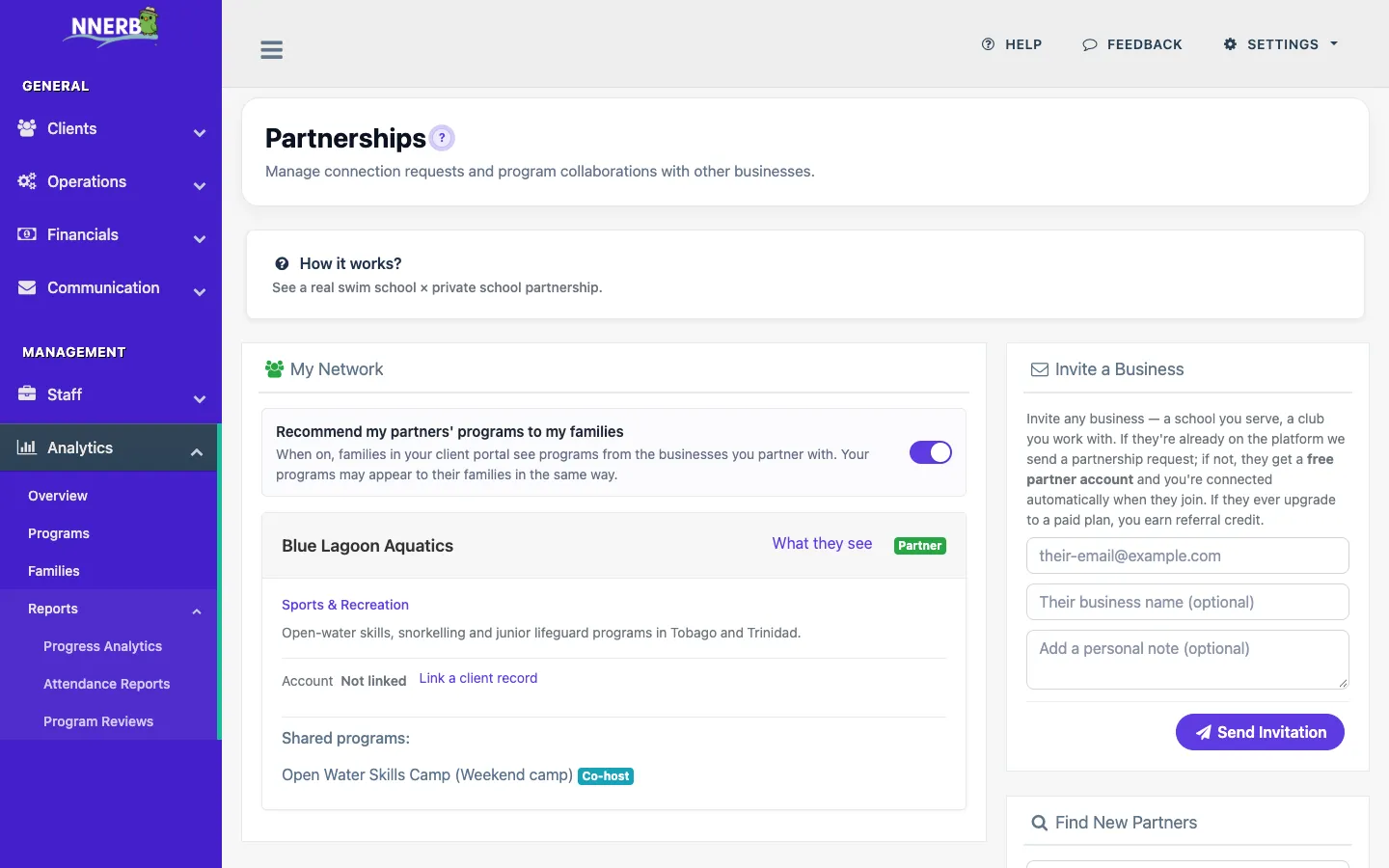
My Partnerships: your network, shared programs and share controls
Share controls you set per program cycle
Sharing is the host’s decision. For every cycle you host, you pick what a partner can see and change it later.
Participants
Share who is enrolled in the cycle, including each participant’s status. Switch it off and the partner sees no participant list for that cycle.
Progress
Share a read-only progress summary for the cycle’s participants, including the skills reached and when they were last updated.
Attendance
Share attendance summaries so a partner can see how often each learner shows up. Partners see them; they cannot edit them.
What they see
Each connected partner has a What they see link that previews their view of you: which cycles are shared, which switches are on, and the balance they can see.
What your partner sees in their portal
A partner account opens on a simple Partner Portal, so a school or club does not need to learn the whole dashboard to follow the learners you teach for them.
Programs and learners
- The programs you run with them, with the cycles shared and who is enrolled.
- Everything is marked View only.
The weekly timetable
- When shared programs meet each week, who runs them and where.
- Their learners are listed against each slot.
Only where you switch them on
- Progress shows how far each learner has got in cycles where you share it.
- Attendance shows who is missing sessions first, filtered by cycle or period, for cycles where you share it.
Respond and leave
- See the organizations connected to them, the cycles shared with them and what they owe each one.
- Respond to a request or leave a partnership from the same page.
Free until they want more
- Partner accounts are free and view-only.
- A partner can activate a full business account to run its own classes. Its partner connections and shared programs stay as they are.
Billing identity: link the partner to the client you invoice
If you invoice a school or club for its learners, link that partner to the matching client record in your account. Their partner portal then shows what they owe you, read-only.
- You choose the client. On a partner’s card, use Link a client record, then search your clients by name. Use Change or Unlink at any time.
- Read-only for them. The partner sees the balance and the invoices that make it up. The partner portal is for viewing; it has no payment or edit controls.
- Only while you are partnered. End the partnership and the balance disappears from their portal.
- One partner per client record. A client record already linked to another partner cannot be picked again.
A switch on My Partnerships, Recommend my partners’ programs to my families, controls whether your families see programs from your partners under Recommended for You in their client portal. Your programs can appear to your partners’ families in the same way.
Partnerships that fit how class businesses work
Three setups the partner network is built for.
Swim school with a private school
The swim school hosts the cycle. The school, as a co-host or a free partner account, follows the roster, attendance and skill progress in view-only mode.
A club that coaches for a school
Invite the school by email. It verifies its address, lands in a free partner portal and sees the cycles and learners you share.
Two businesses co-hosting a term
Both already use nnerb. Connect, add the partner as a collaborator on the cycle, and each side sees it on its own page.
Included on every plan
Partnership Network and Collaboration Share Controls are included on Starter, Growth, Professional and Ultimate. See pricing for the full comparison. Your team needs the Manage Partnerships permission to connect with businesses, and Manage Programs to share a program.
Partnership questions
Does the partner network cost extra?
No. Partnerships and collaboration share controls are included on every nnerb plan, including Starter.
Does my partner need a paid nnerb plan?
No. A business you invite that is not on nnerb yet gets a free partner account with a view-only partner portal, and it can activate a full business account later. A business that already uses nnerb keeps whatever plan it has.
Can a partner change my rosters, attendance or progress?
No. Partners see what you share in view-only mode. Only the host business changes enrolment, attendance and progress.
What can I choose to share with a partner?
For each shared program cycle you can switch Participants, Progress and Attendance on or off. You choose when you invite the partner, and you can change it later from your partner list. The What they see page shows you exactly what a partner can see of you.
How does an invited business prove who it is?
The invited business sets a password and then enters a 6-digit code sent to the email address you invited. Until the code is entered, no account exists, no partnership is created and nothing is shared.
Can my partner see what they owe me?
Yes, if you choose to link them. Link the client record you invoice for that partner and their partner portal shows that balance, read-only, for as long as you are partnered.
What happens when a partnership ends?
Either business can end it. Every shared cycle stops being visible to both sides.
Will my partners' programs show up for my families?
They can. Families in your client portal see programs from your partners under Recommended for You, and your programs can appear to your partners' families in the same way. You can turn this off with the recommendation switch on the My Partnerships page.
Who on my team can manage partnerships?
Team members with the Manage Partnerships permission can connect with businesses and respond to requests. Sharing a program with a partner uses the Manage Programs permission.
Ready to grow together?
Connect with a school, camp or club, share the cycles you choose, and keep the control.
Create your account