A swim school waitlist is never just a list. It is a family waiting on a full level, a second child who would take any weekday time, and a seat that frees up halfway through term. nnerb shows the freed seat, the next family in line and the price decision on one screen, and your team stays in control of every enrolment.
Most waitlists stall in the gap between "a spot opened" and "someone rang the next family". These three pieces close that gap while your team keeps the final say.
When a live enrolment leaves a class time, the seat is listed on the waitlist page with the program and cycle, the time that opened and the family next in line.
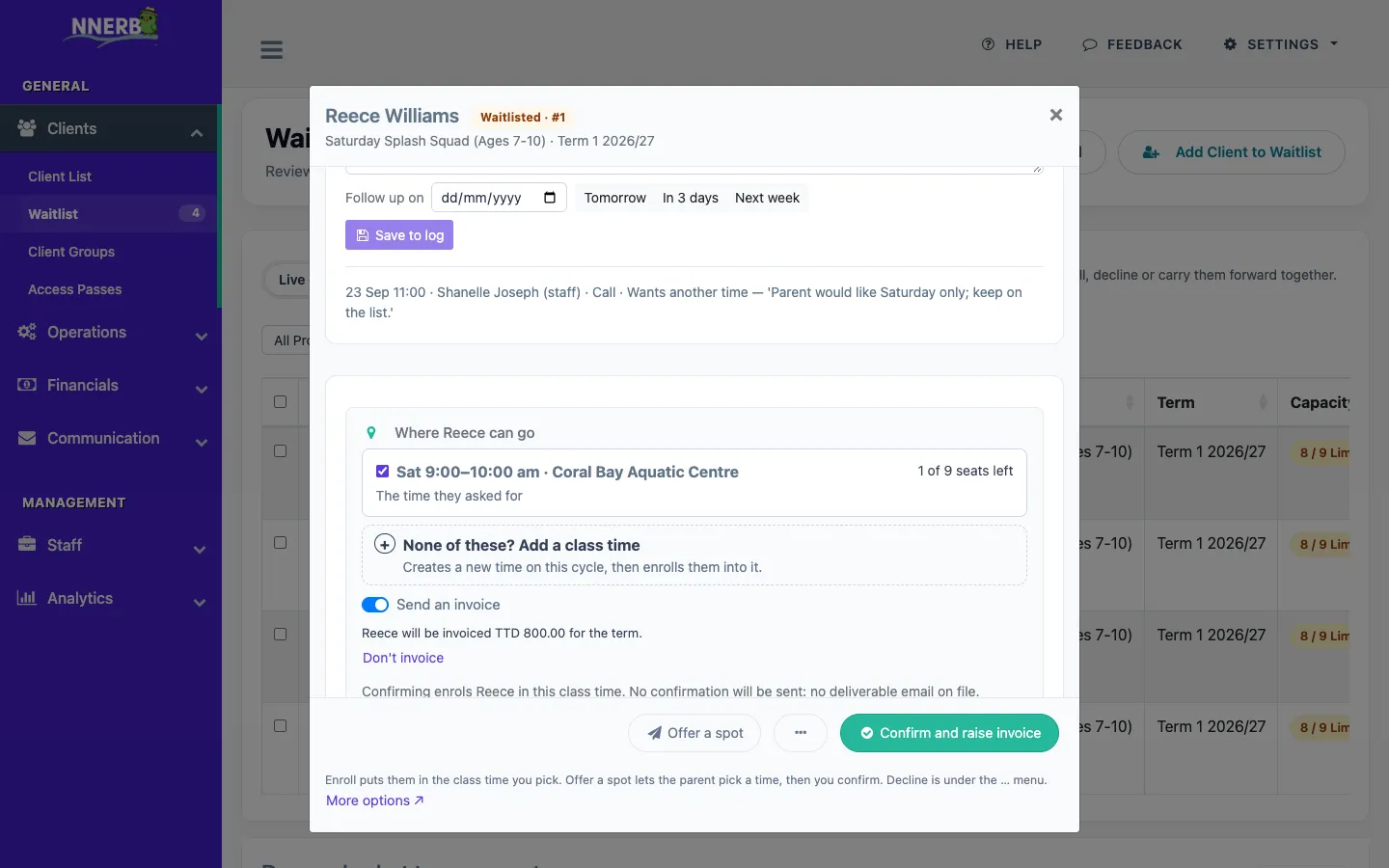
Pick one or more class times, decide how the family pays, and enroll. The invoice is settled in the panel, not in a second form.
Send up to three times as a link. The parent chooses one, the seat is held, and you confirm.
The Freed seats panel sits on the waitlist page and lists each seat that opened, with the family next in line for it. It is a work list for your team, not a notification to parents.
The button reads "Enroll" followed by the child's first name, and the panel asks only the money questions that apply to that class.
If the class has a single price, the panel states it in a plain sentence and invoices it. Turn the invoice off to enroll without one.
Choose from "How will the child pay?" with the prices listed, or pick Let the parent choose so the family selects from the options on their invoice. No price is preselected, and the total appears once you pick.
For per-session pricing the panel asks "How many sessions?" with Rest of the term, Next 4 or Next 8, so the invoice matches what the family is actually taking.
Plans: the waitlist and Freed seats are on every plan. Enrolling with an invoice needs Growth or above, with waitlist invoicing switched on for your business.
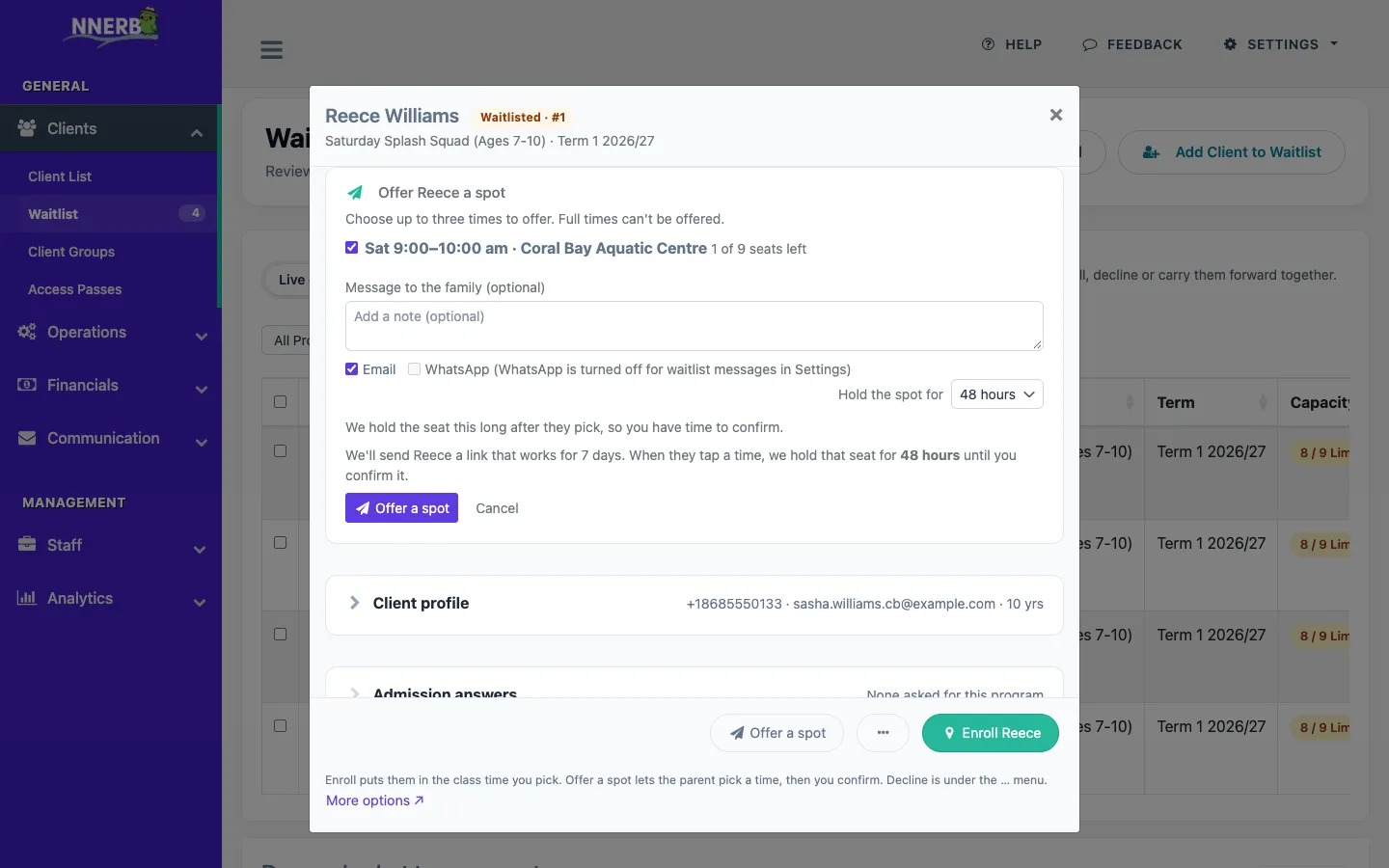
When a family needs to choose between times, Offer a spot sends them a public link. They see the times you offered, pick one, and nnerb holds the seat while you review it.
Plans: Offer a spot, and messaging a family from the waitlist, is on Professional and above.
Offer a spot: choose the times, the channel and how long to hold the seat.
Bulk enrolment keeps the same preview-then-approve discipline, and failed messages say why.
Select families on the Pending tab and use Enroll selected. You preview the placements and invoices, edit rows, approve, and get a receipt of what was done.
If you placed the wrong group, Undo this batch puts people back on the waiting list. It is unavailable once one of the batch's invoices has been paid, and the button says so.
If a waitlist message cannot be delivered, you see each reason, such as an undeliverable email address, instead of one generic error.
Every step is a click by your team. nnerb does the sorting and the paperwork, you make the decisions.
Someone leaves a class time. It appears under Freed seats with the family next in line.
Open the waitlist review screen to see their details and the class times that have room.
Enroll them into the times you pick and decide the invoice, or offer up to three times and let the parent choose.
Confirm the parent's pick, or use Undo if you enrolled into a single class time and changed your mind.
If a class can be full and families are waiting, the waitlist should help you fill it, not just record it.
A swim school waitlist usually means a level that is full at the time families want. Offer alternative times and let the parent pick.
Fill a freed place in a popular weekly class and invoice it without retyping the family's details.
Place a child into more than one weekly class time at once, with full times guarded.
Move waiting students into a new term's classes in bulk, then undo the batch if the grouping was wrong.
No. The waitlist is staff-driven. When a seat opens it appears in the Freed seats panel with the family next in line, and nothing is sent or charged until a member of your team clicks Enroll or Offer a spot.
Waitlist management and the Freed seats panel are on every plan. Enrolling a waitlisted client and invoicing them from the same panel needs Growth or above, and waitlist invoicing has to be turned on for your business. Offer a spot, which sends the family a link to pick a time, is on Professional and above.
You choose up to three class times that have room, add an optional note, and send the offer by email or by WhatsApp where that channel is set up. The family opens a link, picks the time that suits them, and the seat is held for the length you chose: 24 hours, 48 hours, 3 days or 7 days. You then confirm the enrolment. Accepting an offer never enrolls or charges anyone on its own.
Yes. Right after you enroll one person into a single class time, an Undo button removes the enrolment and voids the invoice. An email or WhatsApp message that has already gone out cannot be recalled. After a bulk enrolment you can use Undo this batch, which is no longer available once one of its invoices has been paid.
Full class times cannot be offered. You can still enroll someone into a full time, but only after you tick Place anyway for that time, so a full class is never filled by accident.
The screen tells you why instead of showing a generic error. For example, it can say that email was skipped because the client's email address is not deliverable, or that WhatsApp delivery failed and to try again later, so you know whether to fix the contact details or try again.
Every new business starts with a 30-day trial of the full platform, then moves to the Starter plan or the plan you choose.
Start your 30-day free trial See pricing